> ## Documentation Index
> Fetch the complete documentation index at: https://docs.spendlessdaw.app/llms.txt
> Use this file to discover all available pages before exploring further.
# Listen to audio previews
> Attach a render and audition your ideas without opening FL Studio.
An audio preview is a render you attach to a project. It lets you recognize an idea before loading instruments and effects.
Export the part of the track you want to hear using FL Studio's audio export.
Save and close the project. Open **Edit**, use the audio preview picker, select your render and save the changes.
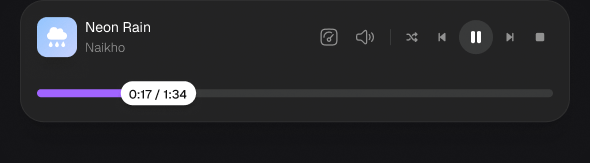
Use the project's play button. The player lets you pause, move through the preview and adjust playback.
 ## Keep the preview current
Changing the music in FL Studio does not update the preview. Render again and replace the attached file when you want the card to play the latest version.
Set the default listening level in **Settings → Preferences → Player volume**. If a preview is silent, check that a file is attached, the volume is up, and the audio file plays normally outside SpendLess.
SpendLess does not render projects, generate MP3s automatically or turn an archive export into an audio file. [Project export](/en/export-projects) and audio rendering are separate actions.
This documentation is built and hosted on [Mintlify](https://mintlify.com), a developer documentation platform.
## Keep the preview current
Changing the music in FL Studio does not update the preview. Render again and replace the attached file when you want the card to play the latest version.
Set the default listening level in **Settings → Preferences → Player volume**. If a preview is silent, check that a file is attached, the volume is up, and the audio file plays normally outside SpendLess.
SpendLess does not render projects, generate MP3s automatically or turn an archive export into an audio file. [Project export](/en/export-projects) and audio rendering are separate actions.
This documentation is built and hosted on [Mintlify](https://mintlify.com), a developer documentation platform.