> ## Documentation Index
> Fetch the complete documentation index at: https://docs.spendlessdaw.app/llms.txt
> Use this file to discover all available pages before exploring further.
# Back up and restore your work
> Understand automatic project-file snapshots, library ZIP backups and their limits.
SpendLess offers two different backup tools. Choose according to what you need to recover.
| Tool | What it protects | Where to find it |
| - | - | - |
| Automatic project-file snapshots | A previous **FLP file** before SpendLess processes edits or updates | Project menu → **Load Backup** |
| Manual library backup | Active projects as individual ZIP packages containing FLPs and collected samples | **Settings → Advanced → Save backup** |
## Restore a project file
Save and close the project in FL Studio. Export a separate copy if you want to preserve the current state before restoring.
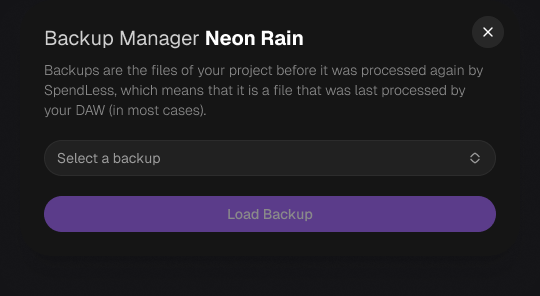
Open the project's menu → **Load Backup**. Choose a dated backup in the Backup Manager.
Choose **Load Backup**. The current FLP moves to the system trash and the selected backup replaces it. Open the restored project in FL Studio and check it.
 Snapshots are local, limited history. They are **not continuous autosave**, do not contain unsaved FL Studio edits, and do not restore old samples, plugins or the entire project folder.
## Save a library backup
1. Save and close your projects in FL Studio.
2. Open **Settings → Advanced → Save backup**.
3. Choose the destination and compression option, then start the backup.
4. Wait for completion and check whether the message reports failed projects.
The resulting ZIP contains **one ZIP per active project**. To restore, extract the outer ZIP and import the individual project ZIPs into SpendLess. Do not import the outer library ZIP as one project.
This backup does not include archived projects, templates, app settings, plugin installations, or SpendLess covers and previews. Copy those separately when you need a complete move or recovery.
Keep an additional copy on another drive or your own backup service. Periodically test an import. A file saved only on the same disk cannot protect against disk failure.
This documentation is built and hosted on [Mintlify](https://mintlify.com), a developer documentation platform.
Snapshots are local, limited history. They are **not continuous autosave**, do not contain unsaved FL Studio edits, and do not restore old samples, plugins or the entire project folder.
## Save a library backup
1. Save and close your projects in FL Studio.
2. Open **Settings → Advanced → Save backup**.
3. Choose the destination and compression option, then start the backup.
4. Wait for completion and check whether the message reports failed projects.
The resulting ZIP contains **one ZIP per active project**. To restore, extract the outer ZIP and import the individual project ZIPs into SpendLess. Do not import the outer library ZIP as one project.
This backup does not include archived projects, templates, app settings, plugin installations, or SpendLess covers and previews. Copy those separately when you need a complete move or recovery.
Keep an additional copy on another drive or your own backup service. Periodically test an import. A file saved only on the same disk cannot protect against disk failure.
This documentation is built and hosted on [Mintlify](https://mintlify.com), a developer documentation platform.