
1
Render in FL Studio
Export the part of the track you want to hear using FL Studio’s audio export.
2
Attach it in SpendLess
Save and close the project. Open Edit, use the audio preview picker, select your render and save the changes.
3
Listen from the library
Use the project’s play button. The player lets you pause, move through the preview and adjust playback.
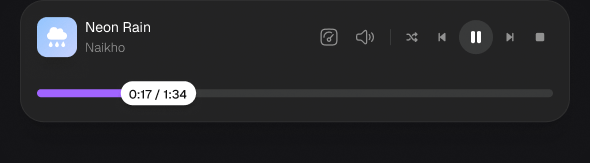
The preview player in the new design.
Keep the preview current
Changing the music in FL Studio does not update the preview. Render again and replace the attached file when you want the card to play the latest version. Set the default listening level in Settings → Preferences → Player volume. If a preview is silent, check that a file is attached, the volume is up, and the audio file plays normally outside SpendLess.SpendLess does not render projects, generate MP3s automatically or turn an archive export into an audio file. Project export and audio rendering are separate actions.